1. Overview
1.1 Supported Platforms
United States: Amazon, Amazon VC, eBay, TikTok, SHEIN, Other e-commerce Platform
Europe: Amazon, Amazon VC, eBay, SHEIN
United Kingdom: Amazon, Amazon VC, eBay, SHEIN, TikTok
Indonesia: Lazada, Shopee, TikTok
Mexico: Amazon, Mercado Libre, Other e-commerce Platform
Philippines: Lazada, Shopee
Singapore: Lazada
United Arab Emirates: Amazon
Independent Sites: Shopify, Shopline, Shoplazza
Note: If you need to migrate stores on other platforms, please contact your account manager.
1.2 Processing Time
Migration requests are typically reviewed and completed on a T+0 basis. For stores whose recipient confirms acceptance by 20:00 (Singapore Time) each day, the migration is completed that same night.
1.3 Migration Requirements
The store has no uncredited funds.
The store has no pending refunds.
The recipient has confirmed their intent to accept the store.
Store migration is supported for the store's country and platform.
Note: If your account is not the administrator account, you do not have permission to migrate stores.
2. Migration Process
2.1 Initiate Migration
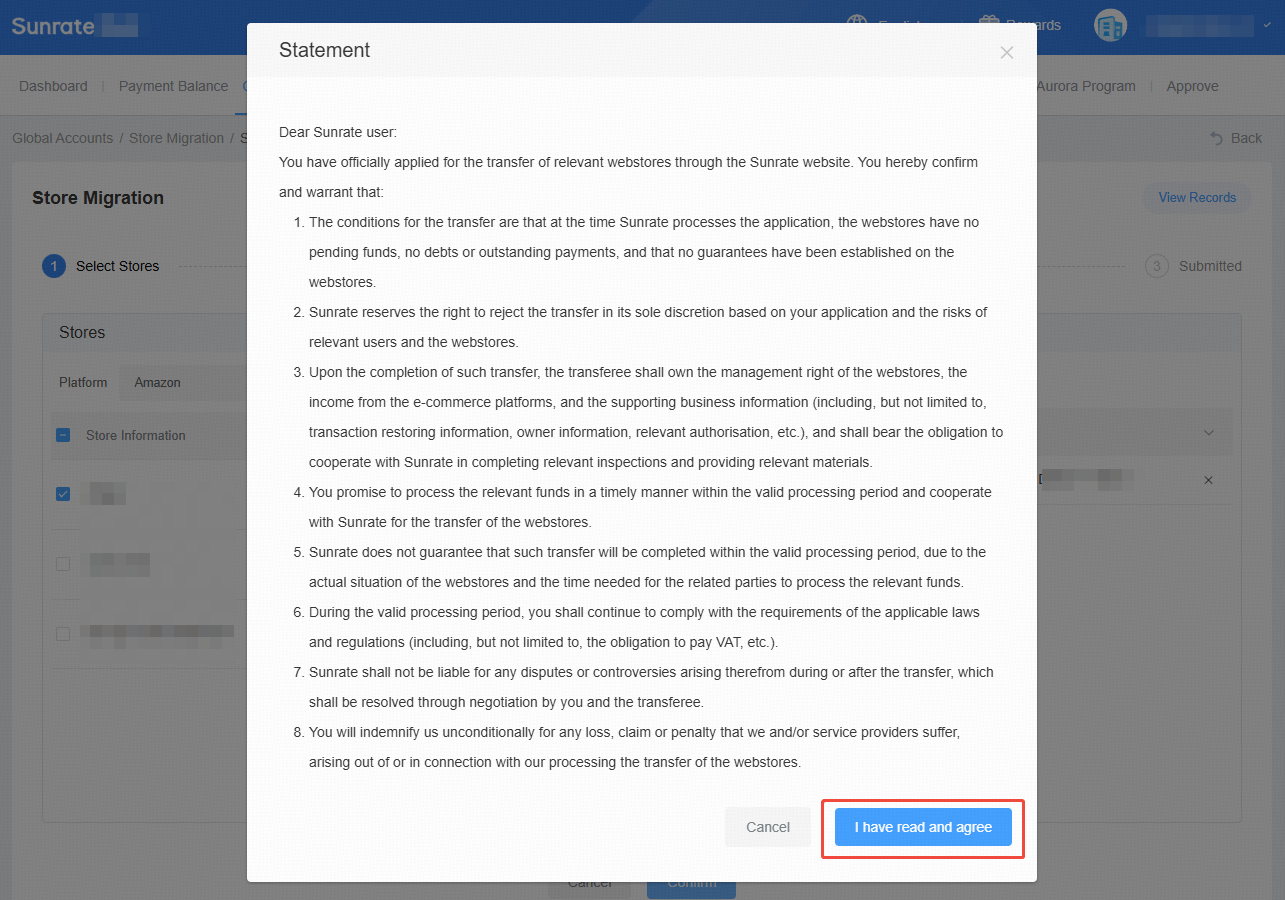
Log in to your Sunrate account and go to Collection Services - Collection Account - Store Migration.
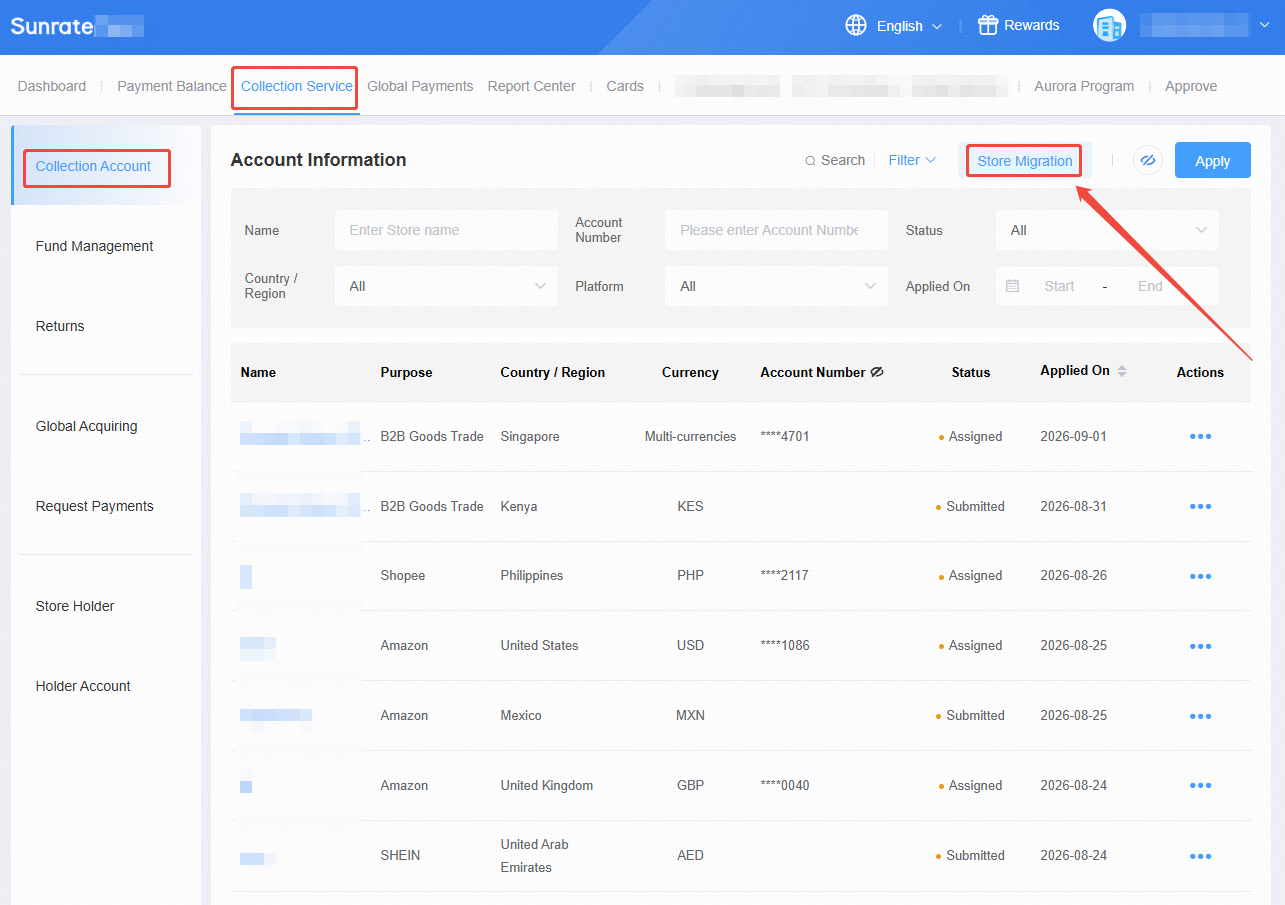
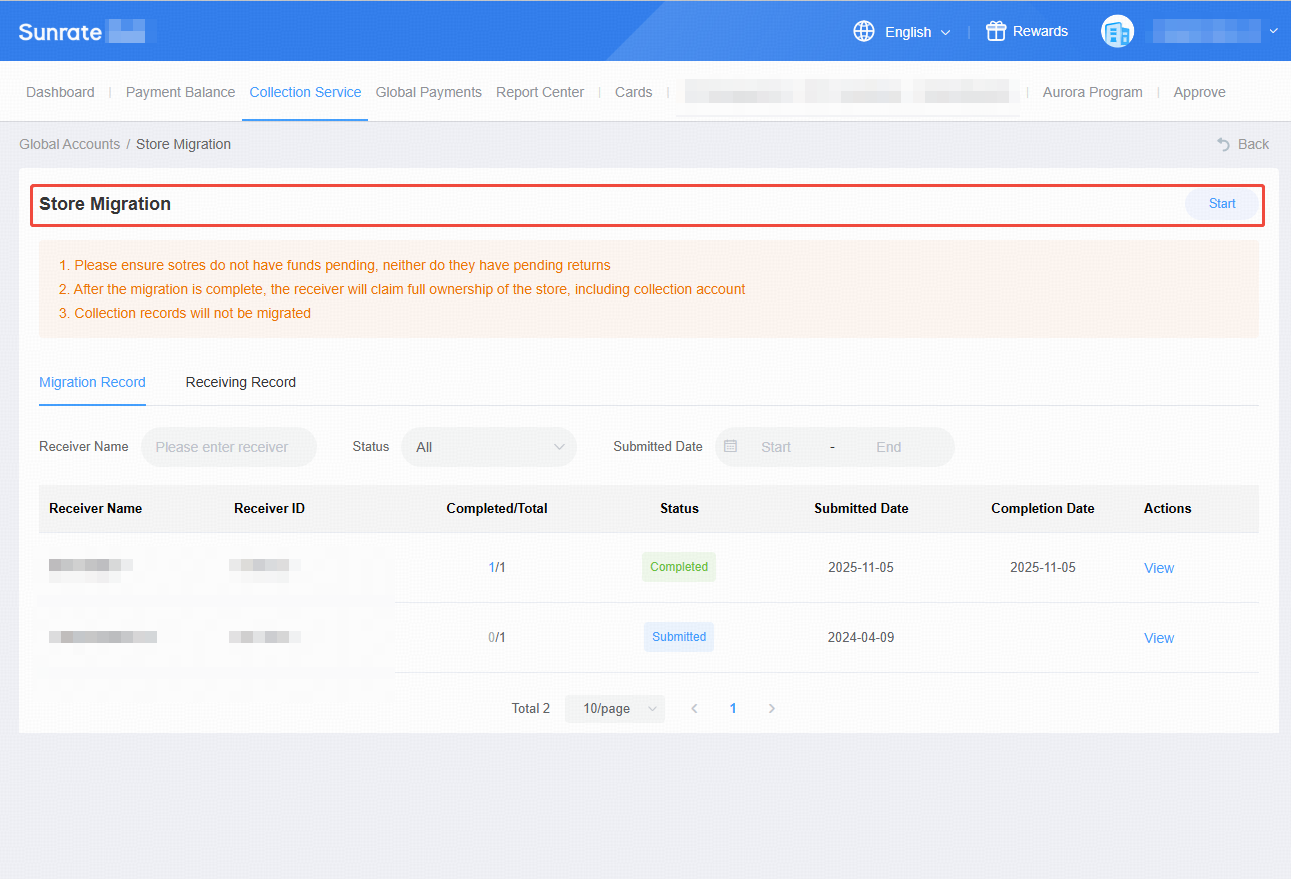
On the Store Migration page, click Start.
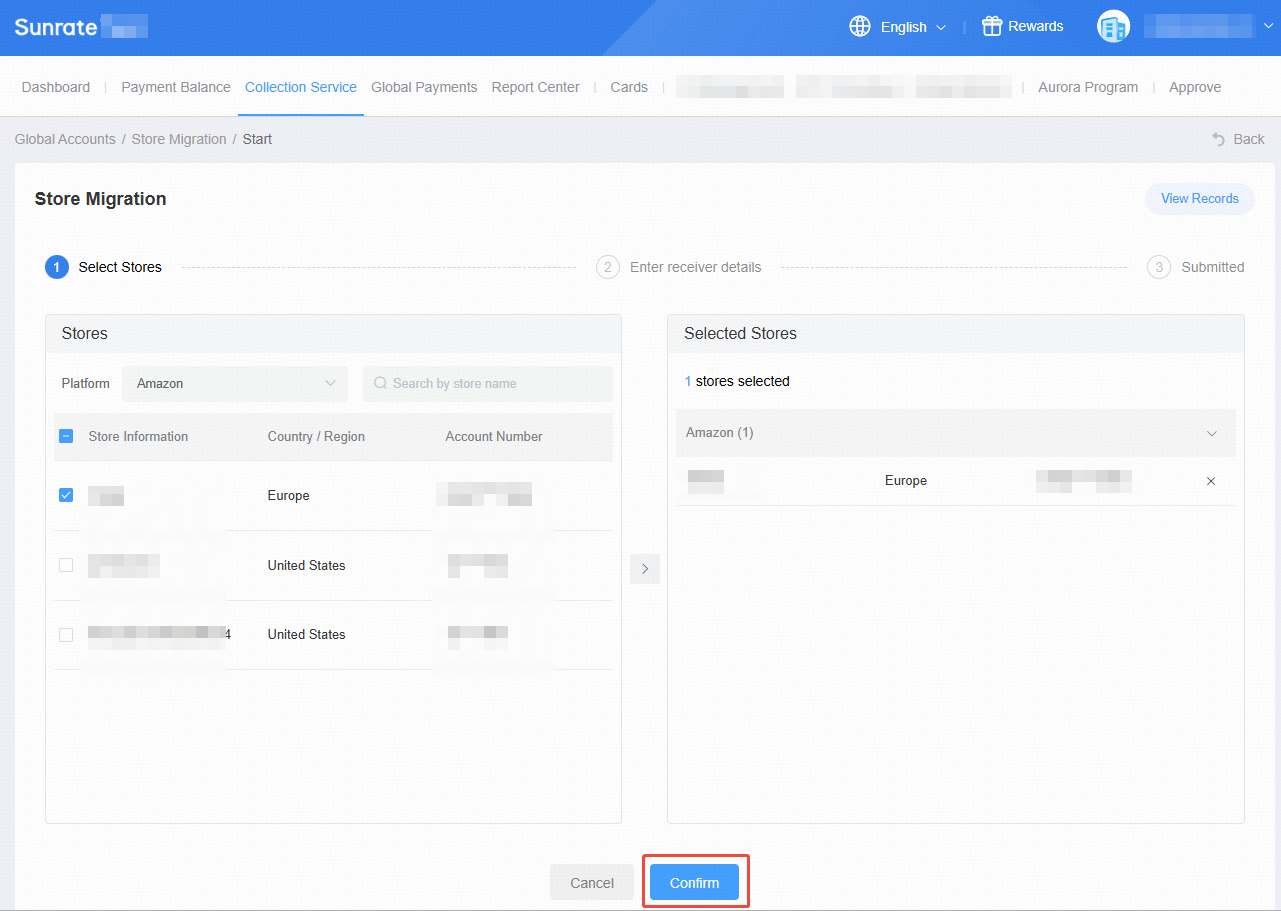
Filter stores by platform. Selected stores appear in the Store Information list on the right. After confirming your selection, click Confirm at the bottom to proceed to the next step.
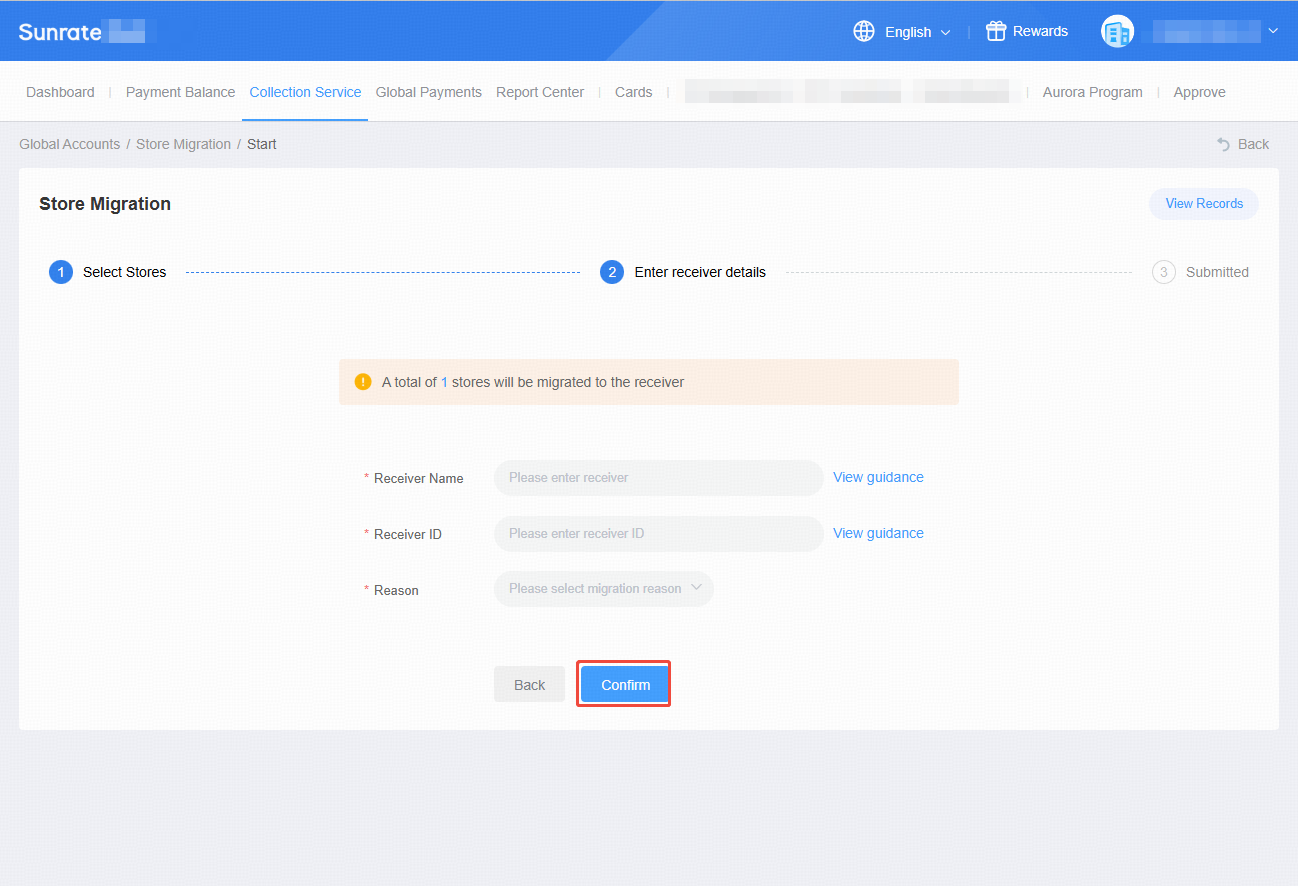
Enter the migration details: recipient name, the recipient's Sunrate Client ID, and the migration reason.
Note: The recipient name and Sunrate customer ID must be 100% consistent with the information on file with Sunrate. Click the "How to View" button on the right for guidance.
2.2 Recipient Confirms Migration
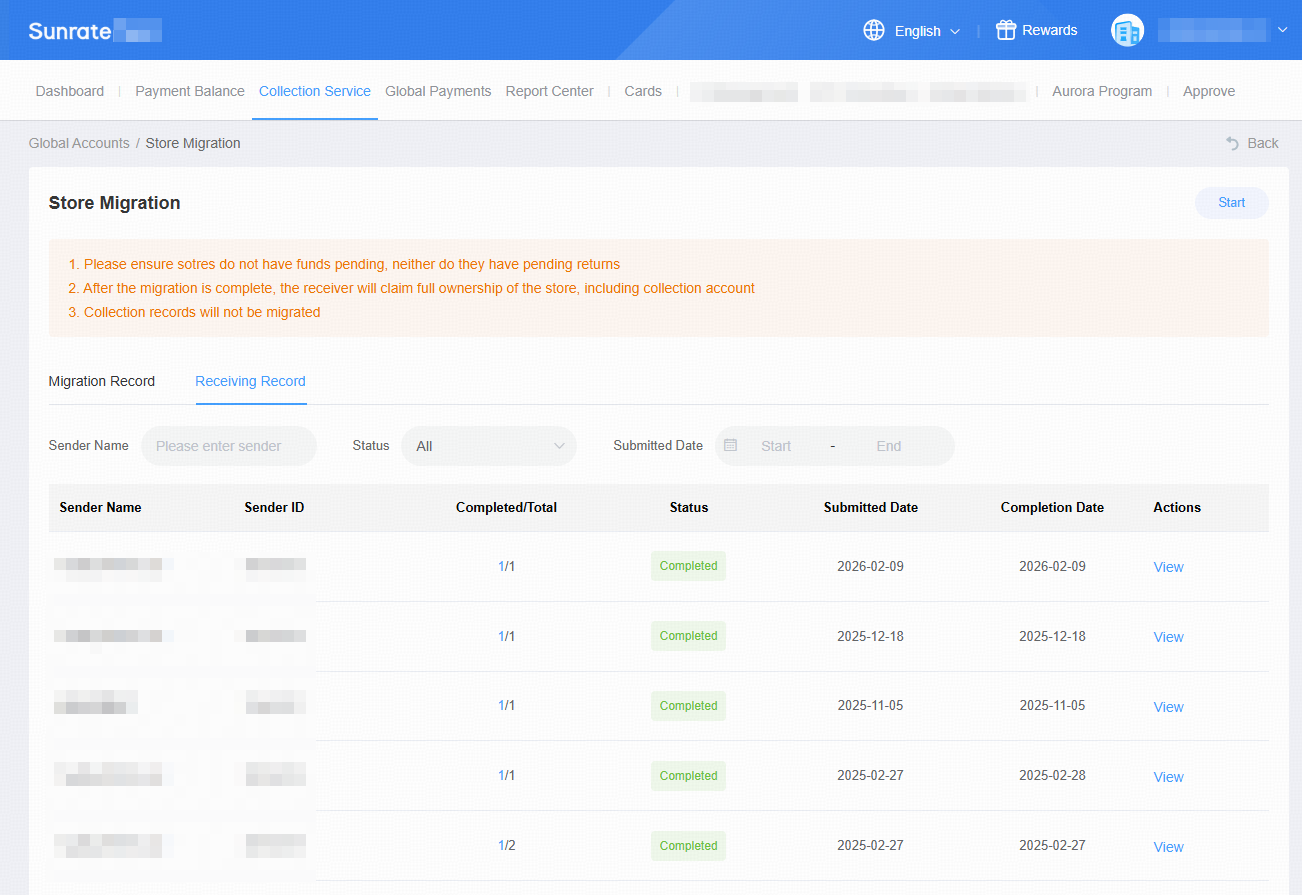
Once the system review is approved, the recipient will see a record with the status "Pending Acceptance" on the Receiving Records page. Click View in the actions column on the right to view store details, then choose Accept or Reject.
Select Accept: the store migration request is approved and will proceed.
Select Reject: the store migration request is rejected and no further action will be taken.